
Buying a new phone means your contacts, photos, chat history, and years of account access move over in a matter of minutes. Most advice focuses on how to transfer data faster, not on which transfer channel is actually safer or what can go wrong along the way. The risk is even higher if your old phone hasn't received a security update in a while before you connect it to the new one — see smartphone without security updates for what that exposes you to.
What researchers found in phone migration apps in 2026
Researchers at Graz University of Technology and Austria's A-SIT institute published Clone2Pwn, a study examining the built-in data-migration apps shipped by major Android vendors. All seven major vendors were in scope:
- Google Android Switch
- Samsung Smart Switch
- Xiaomi Mi Mover
- Vivo EasyShare
- Oppo Clone Phone
- Huawei Phone Clone
- Honor Device Clone
Every one of the seven apps had flaws — according to the researchers, eight CVEs in total, five of them rated high severity. The core issue is that migration runs over the app's own wireless channel (typically Wi-Fi Direct), and an attacker within roughly 20–45 meters indoors, with equipment costing under €100, could eavesdrop on the transferred data or, in some cases, tamper with the stream — up to swapping in a modified APK in place of the legitimate one. That's a form of man-in-the-middle attack, where an attacker inserts themselves into a channel between two devices that trust each other; the general mechanics are covered in man-in-the-middle attacks explained. All seven vendors confirmed the issue and have already shipped updates to both their migration apps and the OS that close it.
What data moves to your new phone
A standard data transfer usually copies contacts, call logs and SMS, photos and videos, settings, and data for most installed apps. That category also includes saved Wi-Fi passwords — meaning access to your home and work networks travels with the phone too. According to the Clone2Pwn researchers and the reporting around the study, those are exactly the categories exposed to interception: contacts, SMS, call logs, photos, documents, app data, Wi-Fi passwords, and in some scenarios health data and app sign-in tokens. A sign-in token or saved session is particularly valuable to an attacker — it can sometimes grant account access without a password or verification code.
Not everything moves this easily. Banking and payment apps typically require you to sign in again and re-register the new device — that's intentional, so a device change doesn't happen invisibly to the account owner. Passkeys behave differently: instead of being copied as a file, they sync through a cloud password manager tied to your Google or device-maker account — see passkeys: passwordless login for how that works.
How to prepare both phones before transferring
The Clone2Pwn researchers' main recommendation is to update the operating system and the migration app itself on BOTH phones — old and new — before starting the transfer. The vulnerabilities are fixed by updates, but only on devices where the update is actually installed, and it's easy to forget to update an old phone that's about to be retired anyway.
- Check the security patch date on both phones' settings and update the OS if needed.
- Update the vendor's migration app itself through the official app store rather than relying on a copy installed long ago.
- Charge both devices to at least 50% and disable auto-lock for the duration of the transfer.
- Back up the old phone to the cloud beforehand regardless of which transfer method you choose, in case the process fails midway.
- Review the old phone before transferring: remove unused and suspicious apps so you don't carry digital clutter over to the new device. See how to check an APK for malware before installing it for how to vet a specific app.
Cloud, cable or Wi-Fi: which transfer method is safest
Android's built-in transfer methods each use a different channel and carry a different risk profile. A Google backup travels over the internet and is encrypted on Google's side, so its main risk isn't interception — it's a compromised Google account: a weak password or no two-factor authentication makes restoring that backup onto someone else's phone trivial for an attacker. A USB-C cable is the most predictable option: the connection is direct, the two devices have to be physically next to each other, and there's simply nowhere for a remote attacker to intercept from. The vendor's app over Wi-Fi Direct is exactly the channel Clone2Pwn tested — radio signals travel beyond the room, and an outdated app version makes interception within range feasible. Third-party migration apps downloaded outside the official store add a separate risk — the transfer tool itself could be malicious. Transferring through a PC using a vendor utility is only as safe as the computer itself, and what happens to the temporary transfer files afterward.
| Method | Transfer channel | Main risk | How to reduce it |
|---|---|---|---|
| Google backup | Cloud (Google-side encryption) | Compromise of the Google account itself | Enable two-factor authentication, use a strong password |
| USB-C cable | Direct wired connection | Minimal — requires physical access to both devices | Use an original or certified cable |
| Vendor app over Wi-Fi Direct | Direct radio link between phones | Interception or tampering within signal range | Update the app and OS, transfer at home, not in public |
| Third-party migration apps from unknown sources | Varies, often Wi-Fi or a third-party cloud service | The app itself could be malicious | Avoid — stick to the official vendor app |
| Transfer via PC | Cable or local network plus a computer | An infected computer, forgotten temp copies on disk | Delete temporary transfer files from the PC afterward |
For sharing individual files rather than your whole profile, there's a narrower tool — Quick Share; its security is covered in Quick Share: how to share files safely.
Step-by-step: secure data transfer on Android
- Update the operating system and the migration app on both phones — old and new.
- Transfer data at home or somewhere else familiar, not in a café, coworking space, airport, or train station: the migration's radio channel is audible to anyone within range.
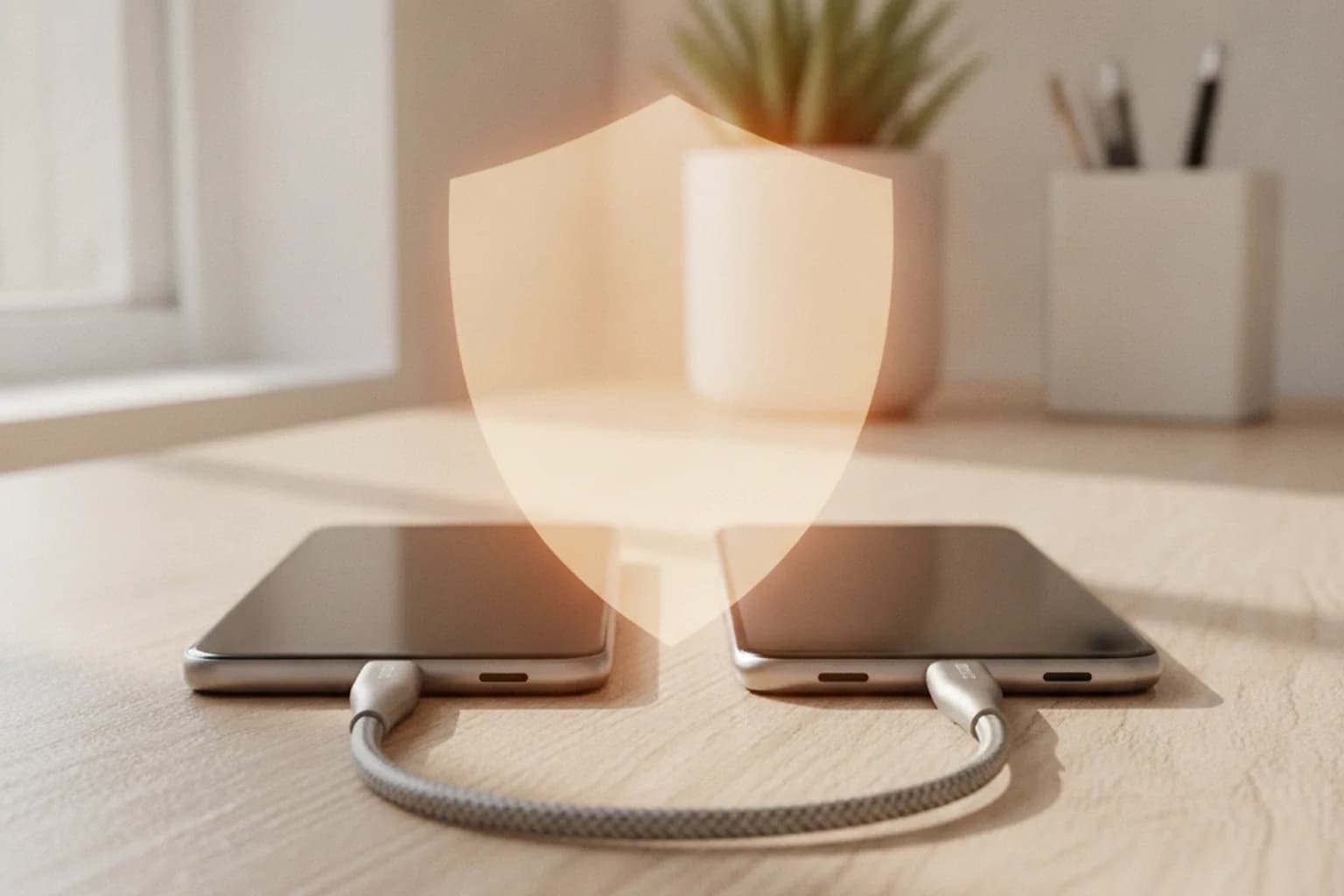
- Connect the phones with a USB-C cable if both support it — the most predictable option; if a cable isn't available, launch the vendor's official migration wizard or app from the Play Store.
- Check the confirmation code or QR code both screens display before allowing the transfer to proceed — it confirms the connection really is with your other device, not someone else's.
- Choose only the data categories you actually need instead of transferring everything by default — it's both faster and reduces what could possibly leak.
- Let the transfer finish completely; don't interrupt it or let either screen lock before it reports success.
- Check the new phone right away, before putting the old one away or factory-resetting it.
If your home network has an open guest Wi-Fi, it's safer to turn it off for the duration of the transfer — the general principle for staying safe on shared or public networks is covered in public Wi-Fi security.
What to check on the new phone right after the transfer
Finishing the transfer isn't the end of a safe move. Right after, run through a short checklist on the new phone:
- Open the installed apps list and confirm there's nothing unfamiliar or out of place, in case the transfer stream was tampered with.
- Run a manual Google Play Protect scan and review permissions on transferred apps, especially camera, microphone, and location access.
- Check active sessions in your Google account and your main messaging apps — sign out old sessions from the previous phone manually if they didn't close on their own.
- Re-enable two-factor authentication and your authenticator app: codes in many authenticator apps don't transfer automatically with everything else — you need to export them beforehand, before resetting the old phone.
- Move passwords over through a password manager rather than retyping them from memory, so you don't end up reusing a weak password on the new phone — see password manager: how to store passwords safely.
- Check active sessions and linked devices in Telegram and other messaging apps separately — this isn't part of the OS's standard profile transfer; see how to protect a Telegram account from hijacking for how to do it.
A new phone is a good moment to protect your traffic from day one rather than putting it off: LiMP VPN for Android encrypts traffic on unfamiliar networks — cafés, hotels, airports — and runs on a no-logs basis. Installing it right after the transfer is easier than remembering to do it a month later on an unfamiliar network.
What to do with your old phone
Until it's wiped, your old phone still holds your data and may still be signed into your accounts. Before putting it in a drawer, selling it, or giving it away, sign out of your Google account and main apps, unlink the device from Find My Device, and only then factory-reset it. A full step-by-step guide for that part is in how to wipe your phone before selling it — we won't repeat it here.
If, on the other hand, your new phone is secondhand or a refurbished device of unknown origin, it's worth checking it for preinstalled malware before moving your personal data onto it — this shows up on budget and uncertified devices right out of the box; see preinstalled malware on a new Android phone for details.
Checklist: secure phone migration in 10 minutes
- Update the OS and migration app on both phones.
- Transfer at home, over a cable or the official wizard — not in a public place.
- Check the confirmation code before the transfer starts.
- Choose only the data categories you need, not everything.
- Review the app list and permissions on the new phone.
- Re-enable two-factor authentication and your authenticator app.
- Install a VPN on the new phone before its first connection to an unfamiliar network.
- Wipe the old phone once everything is transferred and verified.