
What Quick Share is and how it transfers files
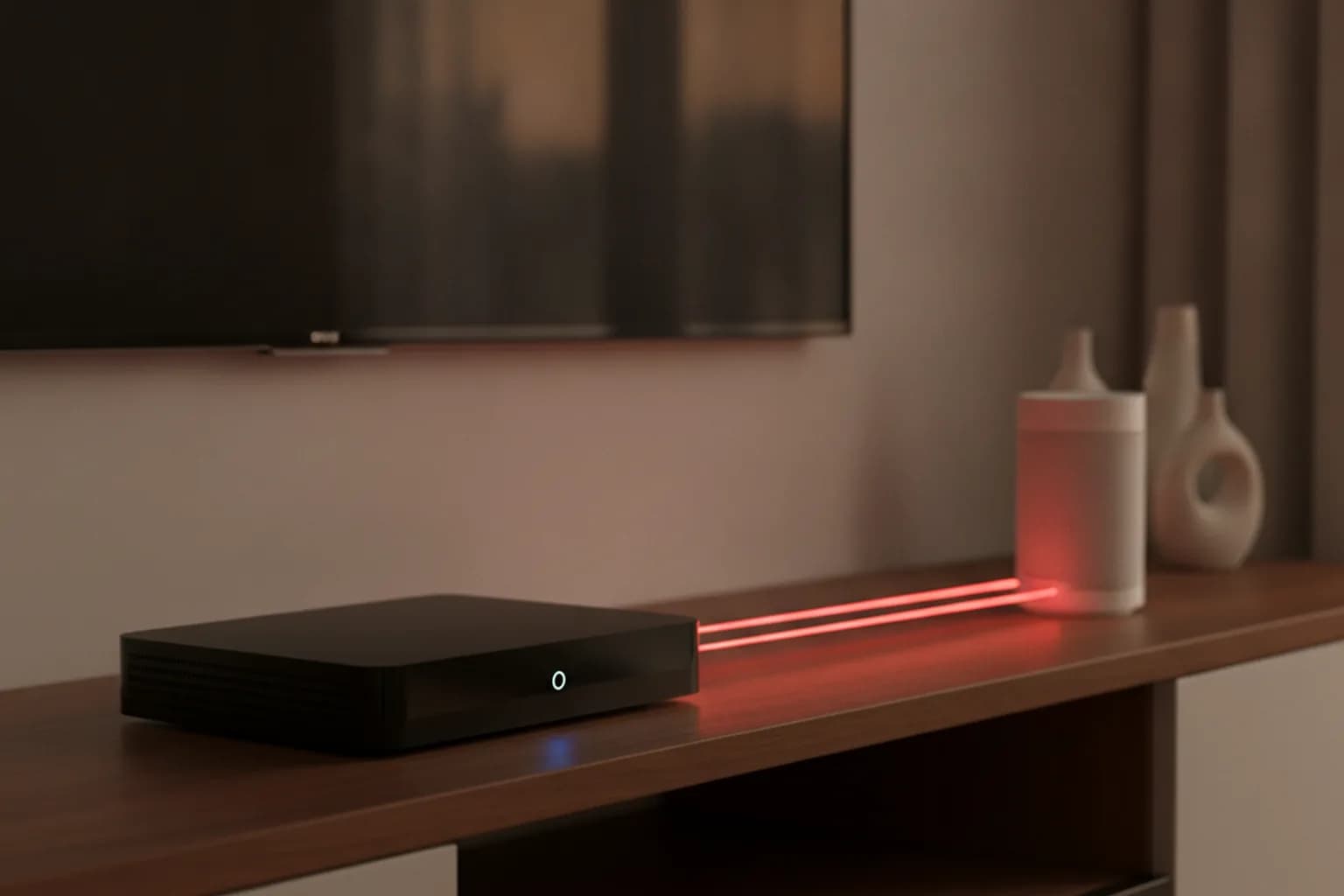
Quick Share evolved from Nearby Share, which Google renamed and merged with Samsung's own "Quick Share" branding in 2024. The feature is built into Android, works on Chromebooks, and ships as a separate app for Windows. Technically it combines two channels: Bluetooth lets devices discover each other nearby, while the actual file transfer runs over Wi-Fi Direct or a local network — fast enough for photos, video, and documents.
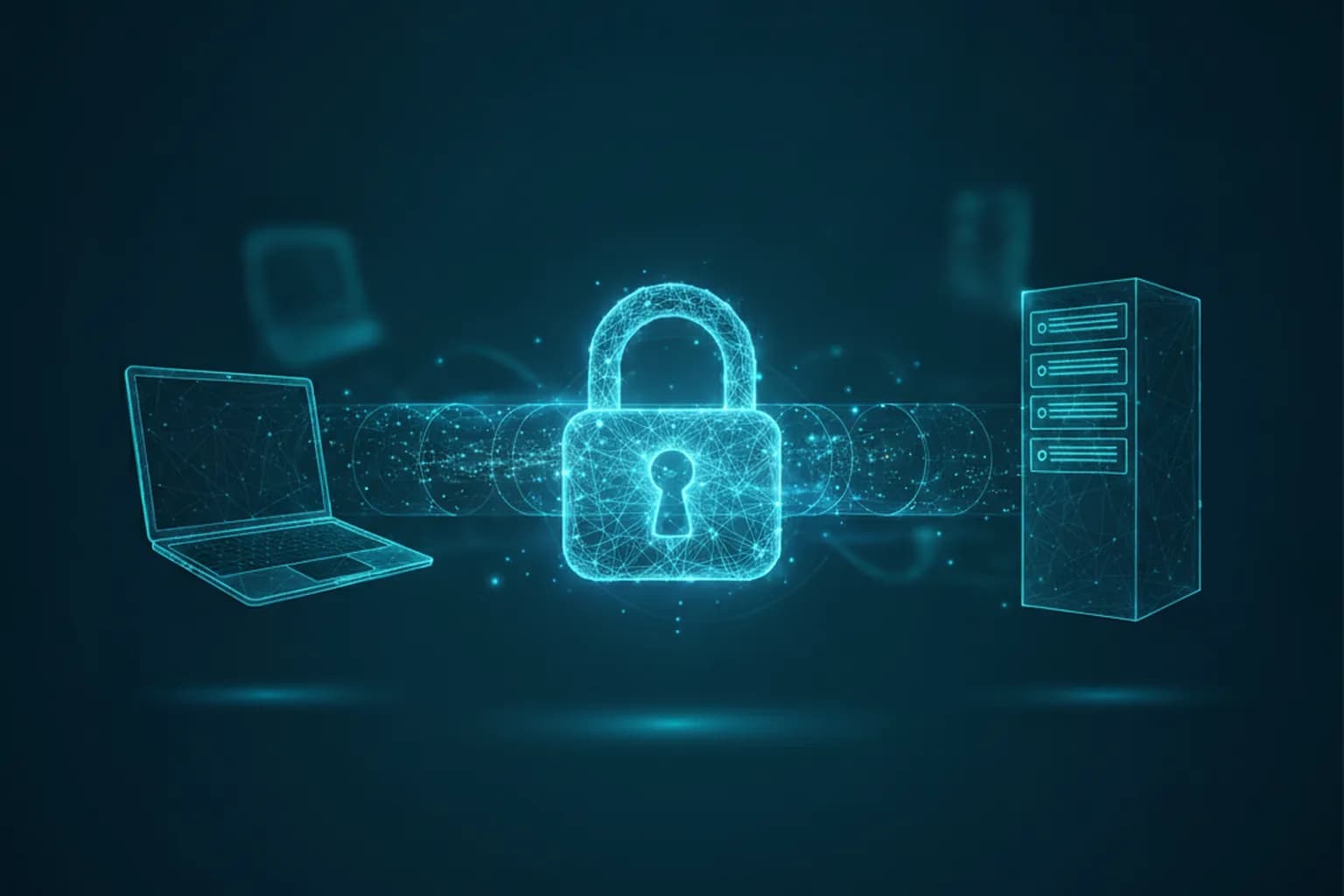
The detail that matters for security is that the transfer never touches the internet and isn't stored in the cloud — it's a direct device-to-device channel. That cuts both ways: it's genuinely more private and doesn't use mobile data, but it also means a VPN physically can't protect it, since a VPN encrypts an internet connection, not local radio communication between nearby devices.
As of November 20, 2025, Quick Share on the Pixel 10 gained interoperability with Apple's AirDrop: an iPhone and an Android device can exchange a file directly. For a transfer with a device that isn't in your contacts, you need to enable "Everyone for 10 minutes" visibility — exactly the mode that calls for extra caution, discussed below.
Is Quick Share safe: what researchers found in 2026
In June 2026, researchers at the CISPA Helmholtz Center for Information Security — Arash Ale Ebrahim and Nils Ole Tippenhauer — published "Protocol Prying: Systematic Vulnerability Research in the Apple AirDrop and Android Quick Share Proximity Transfer Protocols." It describes six vulnerabilities across both nearby-sharing protocols — Apple AirDrop and Android Quick Share — three of which are specific to Quick Share.
In plain terms: two of the issues (labeled V4 and V5 in the paper) affect the Quick Share implementation in Samsung and Google components and allow attackers to bypass part of the protocol's checks before full device authentication — and for V5, to bypass encryption outright if the attacker is on the same local network as the victim. The third, V6, is a use-after-free bug in the Quick Share client app for Windows — a memory-handling flaw exploitable remotely.
According to the research, the attack conditions are modest: a laptop with Wi-Fi within roughly 10–30 meters of the target is enough. Prior device pairing, contact exchange, or joining the same network aren't required for V4 and V6 — the victim's device just needs to be discoverable via Quick Share. V5 has one extra condition: the attacker and the victim need to be on the same local network, such as shared Wi-Fi at a café or event.
As of June 2026, Google acknowledged the V6 vulnerability in the Windows client and paid the researchers a bug bounty; a fix has already shipped with a client update. Samsung forwarded V4 and V5 to Google, and at the time of publication these were still under review by the vendor, with no CVE number assigned yet. That's not a reason to panic, but it is a good reason to treat device visibility and updates seriously — exactly as described in the sections below.
Visibility modes: which one to choose
Quick Share's Android settings offer three modes controlling who can see your device and send you a file. The difference between them matters for security, not just convenience.
"Your devices"
Only a device signed into the same Google account as yours can receive a file. This is the most locked-down mode: strangers never see your device in the list at all. Transfers between your own phone, tablet, and laptop in this mode are usually accepted automatically, without a separate confirmation prompt — convenient, but worth keeping in mind alongside the account-compromise point further down.
"Contacts"
Your device is visible only to people whose phone number or email is already in your Google contacts — and only if they also have Quick Share enabled. A reasonable default for most people: friends and colleagues can send you a file, a random stranger at a coffee shop can't.
"Everyone for 10 minutes"
The most open mode: everyone nearby with Bluetooth and Quick Share on can see your device, regardless of whether you have their contact saved. This is the mode needed for a one-off transfer to someone you don't know, or for exchanging a file with an iPhone via AirDrop on a Pixel 10. One important detail: the mode automatically reverts to your previous setting after 10 minutes rather than staying on indefinitely — but while it's active, the device is discoverable and, in theory, exposed to the attacks described above.
Visibility also depends on screen state: on a locked or sleeping screen, a device is typically not discoverable to others even in the wide-open mode — a useful extra layer, though not a reason to leave "Everyone" enabled by default.
Real-world risks
Unsolicited files and cyberflashing
With visibility set to "Everyone," anyone nearby can attempt to send a file to your device — you'll see an Accept/Decline prompt showing the sender's device name. One unpleasant but real scenario is cyberflashing: sending unwanted images to strangers in public places through nearby-sharing features (a problem that has long existed around AirDrop too). The fix is straightforward: don't leave visibility open without a reason, and decline any unexpected request.
Malicious APKs and documents disguised as photos
A transfer prompt shows only the file type and the sender's device name, not the file's contents. Something that looks like a photo or document can in fact be an Android installation package (APK) or a malicious attachment. Before installing anything received via Quick Share, it's worth checking the file — see "How to Check an APK for Malware" for the process.
Spoofed sender names and social engineering
The device name shown to the recipient is whatever the sender set it to — it could say "Mom," "IT Support," or a generic "Pixel." In a crowded setting (a conference, an airport, a classroom), this opens the door to social engineering: someone accepts a file because the name sounds familiar or trustworthy. The rule of thumb is to trust the context, not the device name — were you actually expecting a transfer right now?
Auto-accept between your own devices
"Your devices" mode is convenient because it accepts files from other devices on the same Google account automatically, with no confirmation. That same property becomes a risk if the Google account is compromised — auto-accept then turns into an extra delivery channel an attacker could try to use, with no confirmation prompt standing in the way. That's the direct link to securing the account itself, covered in the checklist below.
How to configure Quick Share securely on Android
Exact menu wording differs slightly between Android skins (stock Android, Samsung One UI, and others), but the underlying logic is the same.
- Open Settings → "Google" (or "Connected devices," depending on your build) → "Quick Share."
- Find "Who can share with you" and set it to "Contacts" or "Your devices" as the default.
- Rename your device to something neutral that doesn't include your real name — useful if you ever need to switch to wider visibility.
- For a one-off transfer to someone you don't know (say, sharing a contact at an event), temporarily enable "Everyone for 10 minutes," wait for the transfer to finish, and don't just assume the mode "turns itself off" — it's worth double-checking visibility has reverted.
- Keep Android updated to the latest available version and make sure Google Play Protect is on, so new protocol fixes reach the device faster.
On Samsung devices, the equivalent setting lives in the notification shade: long-press the "Quick Share" icon → open "Who can share with me" and pick the mode you want — the exact location can vary by One UI version.
Quick Share on Windows: setup and updates
On Windows, Quick Share runs as a separate app that receives files from Android devices over a local network or Wi-Fi Direct. This is exactly where CISPA's researchers found the V6 use-after-free vulnerability, which Google has already fixed with a client update — so keeping the Windows client current matters just as much as tuning visibility on the phone.
In the app, it's worth choosing a restricted receiving mode and turning Quick Share off entirely when you're not using it — especially on shared networks like a café, coworking space, or hotel Wi-Fi, where your laptop ends up on the same network as strangers. For protecting the rest of a laptop's traffic on such a network — not just local file sharing, but ordinary browsing, email, and messaging — it makes sense to keep the LiMP VPN client for Windows turned on: it doesn't replace Quick Share's visibility settings, but it closes a neighboring risk — interception of your internet traffic on an untrusted network.
Where Quick Share is riskiest: crowded places and shared networks
The attack conditions from the CISPA research — a 10–30 meter radius and, for some of the vulnerabilities, a shared local network — point to specific high-risk settings: a subway car, an airport waiting area, a conference or meetup, a café or coworking space with shared Wi-Fi. These are exactly the places where dozens of unfamiliar devices end up nearby, and where "Everyone" visibility hands an attacker precisely the conditions needed to exploit the protocol.
It's worth separating two distinct risks in these settings. The first is attacks on the Quick Share protocol itself and unsolicited files: limiting visibility and keeping software updated is what protects against this, and a VPN doesn't help here, since the channel is local and bypasses the internet connection entirely. The second is interception of a device's ordinary internet traffic on a shared Wi-Fi network (see "Public Wi-Fi Security" and "Fake Wi-Fi: Evil Twin Attack" for more): here a VPN genuinely solves the problem by encrypting traffic between the device and the internet. It's worth keeping these two risks mentally separate — which is exactly what the table below lays out.
| Nearby-sharing threat | Does a VPN help | What actually helps |
|---|---|---|
| Unsolicited file from a stranger | No | "Contacts"/"Your devices" visibility, decline requests |
| Attack on the Quick Share protocol from 10–30 m | No (local channel) | Don't leave "Everyone" on unnecessarily, keep OS and client updated |
| Interception of internet traffic on shared Wi-Fi | Yes | VPN, HTTPS |
| Malicious APK disguised as a file | No | Don't install on sight, verify the APK, Play Protect |
| Location metadata leaking in a shared photo | No | Strip EXIF data before sending |
Checklist: what to do today
- Set Quick Share visibility to "Contacts" or "Your devices" as the default.
- Turn on "Everyone" only for 10 minutes and only for a specific, planned transfer.
- Decline transfer requests from unfamiliar device names, especially in crowded places.
- Don't install APKs or open documents received "nearby" without checking them first — see "How to Check an APK for Malware".
- Keep Android, its security patches, and the Windows Quick Share client updated — see "Smartphone Without Security Updates".
- Turn off Bluetooth in crowded places when you don't need it — see "Bluetooth Headphone Hacking: Protection".
- Secure your Google account with two-factor authentication — it's what auto-accept between your own devices relies on.
- On shared networks (cafés, airports, coworking spaces), keep a VPN running on your phone and laptop — see LiMP VPN for Android.
- Strip location metadata before sending a photo via Quick Share — see "Remove EXIF Metadata From Photos".