

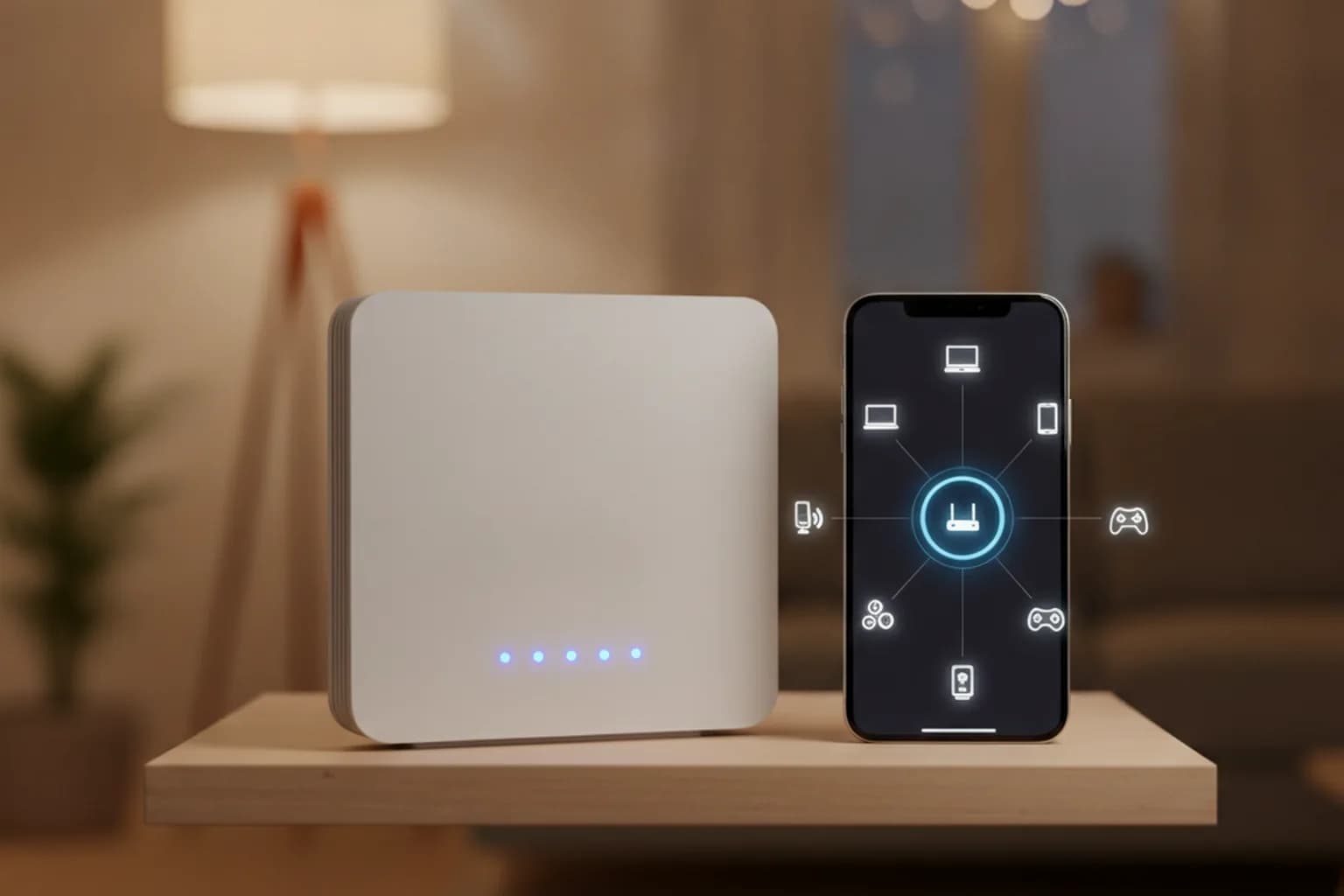
In short: the full list of devices connected to your Wi-Fi lives in your router's web panel or companion app — usually a “Connected Devices,” “Clients,” or DHCP section. Check it against the gadgets you actually own: phones and laptops. One catch — iPhones and modern Android phones use a “private Wi-Fi address,” so your own phone can show up under a random MAC address and look like a stranger's device. If, after checking, someone unfamiliar is still on the list, block it in the router and immediately change your Wi-Fi password and turn off WPS — otherwise the same access route lets them back in. For a full router hardening walkthrough, see our guide on securing your home router.
Signs someone unauthorized is on your Wi-Fi
Before opening the router panel, there are a few indirect signals worth noticing. None of them prove an intruder on their own — they're just reasons to go check the client list.
- Speed noticeably drops during hours when none of your own devices are in use.
- The Wi-Fi indicator light keeps blinking while everything you own is asleep or powered off.
- The router's client list shows more devices than you actually have in the house.
- Unfamiliar device names show up among the connected clients.
- Your router's app sends a push notification about a new, never-seen-before device.
Any of these is a reason to open the connected-devices list and check it — not a reason to change your password right away “just in case.” Diagnose first, act second.
How to see the list of connected devices in your router
The address for your router's admin panel is usually printed on a label on the bottom or back of the device — most often 192.168.0.1, 192.168.1.1, or a branded address depending on the manufacturer. The login and password for the panel are on the same label if you haven't changed them.
Through the web panel
After logging in, look for a section named something like “Connected Devices,” “Clients,” “Network Map,” or “DHCP Leases” — wording varies by firmware, but the idea is the same: a table showing each device's name (hostname), its local IP address, and its MAC address. This is the one reliable source — unlike the indirect signs above, it shows exactly what's connected right now.
Through the router's phone app
Most modern routers and mesh systems ship with a companion app — Google Home for Nest Wifi, the Eero app, TP-Link Deco/Tether, Netgear Nighthawk, or an ISP-branded app for rented hardware like Xfinity or a BT Hub. The advantage over the web panel is that many of these apps can push a notification the moment a new, previously unseen device joins the network — worth turning that setting on if it's available.
| Router / platform | Where to find the device list | Can you block from the app? |
|---|---|---|
| TP-Link (Tether / Deco) | “Clients” / “Devices” section | Yes, from the app and the web panel |
| Google Nest Wifi / Google Home | Wi-Fi tab → device list | Yes, “Manage” → pause or remove a device |
| Eero | Devices tab in the Eero app | Yes, block or pause per device |
| Netgear Nighthawk | “Attached Devices” in the app or web UI | Yes, via device blocking |
| ISP-rented router (Xfinity, BT Hub, etc.) | ISP app or the web panel address from your setup guide | Varies by model — not always available from the ISP app |
How to check without access to the router: network scanners
If you've lost the router's admin password or access to the panel is otherwise limited, you can still see what's on the network from an ordinary computer or phone. On iOS and Android, Fing scans the local network and lists active addresses with a best-effort guess at device type. On Windows, Wireless Network Watcher does something similar, and a quick list is also available from the command line with arp -a, which shows a table of IP and MAC addresses your machine has recently exchanged packets with.
This method has a limitation: a scanner only sees devices in the same network segment as your phone or computer, and it may miss guests sitting on a separate guest network. On top of that, a scanner doesn't block anything by itself — you'll still need the router's panel to actually remove a device you've found.
Telling whose device is whose
Name, IP, and manufacturer via MAC
The first clue is the hostname — the network name a device reports to the router itself: “Annas-iPhone,” “Galaxy-S24,” “DESKTOP-A1B2C3.” Smart-home gadgets often show up under technical names like “ESP_XXXX” — typically a budget smart plug or bulb built on an ESP chip. The second clue is the first three bytes of the MAC address (the OUI), which any public OUI lookup can match to a manufacturer. But there's an important exception to that, covered next.
Random MAC addresses: why your own phone looks like a stranger
On iPhone and iPad running iOS/iPadOS 18 and later, a per-network “Private Wi-Fi Address” setting offers three modes: off, fixed, and rotating. For password-protected home networks (WPA2/WPA3), Apple defaults to fixed — one random address assigned to that specific network, which doesn't change. For open or weakly secured networks, the default is rotating — the address refreshes roughly every two weeks. On Android, every version since Android 10 generates its own random MAC per network, and Android 12 added non-persistent randomization for some networks — meaning the address can change again on a later reconnect.
The practical takeaway: your own phone can appear in the router's client list under an address that has nothing to do with its factory MAC — and an OUI lookup on that address will come up empty. There's a technical tell, though: randomized addresses have the locally-administered bit set, which shows up as the second character of the first byte being 2, 6, A, or E (for example, an address like x2:xx:xx:xx:xx:xx). If you spot an unfamiliar device with exactly that pattern, it's likely your own gadget with Wi-Fi privacy turned on, not an intruder. For more on how randomized MACs work and why they exist for privacy reasons, see our article on MAC addresses and Wi-Fi tracking.
To check your own device's address for a specific network: on iPhone — Settings → Wi-Fi → the (i) icon next to the network → “Wi-Fi Address”; on Android — Wi-Fi → the gear icon next to the network → a privacy or MAC address section (wording varies by manufacturer skin); on Windows — the ipconfig /all command or the Network & Internet settings page; on macOS — System Settings → Wi-Fi → “Details.”
The elimination method
If doubts remain after all of the above, the most reliable approach is to turn Wi-Fi off on your own devices one at a time and watch which line disappears from the router's client list. While you're at it, rename your devices in the router panel to something recognizable — that saves you from repeating the whole process next time.
What an unauthorized device on your network can actually do
The consequences of a stranger on your network go beyond “someone is stealing my bandwidth,” even though the speed hit alone is annoying. There are a few more concrete risks worth naming.
- Anything the intruder does online goes out under your public IP address — if your ISP ever gets a complaint tied to activity on that address, it lands on the account holder, not on whoever was actually sitting on the network.
- Access to shared network folders, a home NAS, networked printers, and DLNA media libraries — if those were left open “for convenience,” anyone on the local network can reach them directly.
- Attempts to log into IP cameras and other smart devices with factory-default credentials that many people never bother to change — see our guide on protecting a security camera from hackers.
- If the router's own admin panel still uses its factory password, someone with network access can technically reach that too — recovering legitimate control at that point means a full factory reset.
- Plain bandwidth load — an extra device consumes part of the connection you're paying for.
How to remove an unauthorized device
- Open the client list in the router's web panel or app and find the row for the device identified as unauthorized using the methods above.
- Block it — most router interfaces call this a “blocklist,” “deny access,” or “MAC filter,” and it lets you cut off one specific MAC address without disconnecting anyone else.
- Change your Wi-Fi password right away. This disconnects everyone, including your own devices, which you'll then need to reconnect manually with the new password.
- Turn off WPS (Wi-Fi Protected Setup) in the router settings — it's the most common shortcut for guessing network access without going through a strong password.
- Check whether the DNS settings or the router admin password itself have been changed — if the intruder got into the panel, they may have left changes behind.
One important caveat: blocking by MAC address is a temporary fix, not a solution. A MAC address is easy to spoof, and if the unauthorized device itself has MAC randomization turned on, the same block simply stops working the next time it shows up under a new address. An allowlist of approved MAC addresses looks sturdier on paper but is inconvenient day to day and can be bypassed the same way by anyone who knows how spoofing works. The one step that actually closes the door is changing the Wi-Fi password. If the admin password no longer works, or the settings show clear signs of tampering, the remaining option is the router's physical Reset button and setting the network up again from scratch.
How to keep strangers from coming back
Removing an unauthorized device once isn't enough — you need to close off the way back in. The key steps: use WPA3 encryption, or at minimum a WPA2/WPA3 mixed mode; set a long passphrase instead of a short string of characters; keep WPS turned off; set up a separate guest network for visitors and smart-home gadgets; turn on new-device notifications in the router's app; and never hand out your main Wi-Fi password to people who don't need it. For a full walkthrough of these and other settings, see our article on securing your home router, and for isolating smart devices from each other, see our piece on smart home privacy.
A separate layer of protection — one that doesn't replace a Wi-Fi password but complements it — is a VPN. It encrypts your devices' traffic all the way to the VPN server, so even if someone did get onto your local network, or the router itself was compromised, the actual content of your connections — from your banking app to your messages — stays unreadable to them. This matters even more if you set up the VPN directly on the router itself: that way, devices that can't run a VPN app on their own — smart TVs and streaming boxes — get encrypted too, as covered in our guide on running a VPN on your router. Current LiMP VPN plans cover multiple devices under one subscription, with apps for both iOS and Android. To be clear: a VPN doesn't kick an intruder off your Wi-Fi and doesn't replace changing your password — these are two separate, independent layers of protection.
Checklist: what to do right now
- Log into your router's panel or app and open the connected-devices list.
- Label your own devices with recognizable names so you don't have to re-identify them next time.
- Check anything unfamiliar with random MAC addressing in mind before jumping to conclusions.
- Block any device confirmed to be unauthorized.
- Change your Wi-Fi password and your router's admin password.
- Turn off WPS.
- Set up a separate guest network for visitors and smart-home devices.
- Enable push notifications for new connections if your router's app supports them.
Frequently asked questions
Can a neighbor see what sites I'm visiting if they connect to my Wi-Fi?
Not the content of HTTPS connections — that's encrypted between your device and the site. Metadata about which domains you're reaching can be visible through unencrypted DNS queries, though, if your device isn't using DNS over HTTPS or a VPN. For more on what a network can actually see, read does your ISP see what sites you visit.
Can I find out exactly who (which person) connected to my Wi-Fi?
No. The router only sees a technical device — its name, MAC address, and IP address — not the identity of whoever owns it. Trying to “figure out” a person from that data on your own isn't something the data is built to support.
Why does my router's device list show more devices than I actually own?
Most often it's smart TVs, smart speakers, bulbs and plugs, or a robot vacuum — the kind of device that's easy to forget when counting. Another common reason is the same phone showing up twice because its random MAC address changed, plus stale DHCP leases for devices that haven't connected in a while but haven't “expired” from the router's table yet.
Would hiding my network name (SSID) help keep it from being found?
Barely. Network scanners can still see hidden Wi-Fi networks — they just won't show a friendly name in the list of available connections on an ordinary phone. That mostly inconveniences you when setting up new devices, rather than acting as a real protective measure.
If I change my Wi-Fi password, will every device disconnect?
Yes, all of them — including your own phones, laptops, and smart devices. Each one needs to be reconnected manually with the new password, so it helps to have that new password handy for every device before you make the change.
Can my ISP see how many devices are connected to my router?
In most cases, an ISP only sees a single public IP address for your router — what happens inside your local network behind NAT typically isn't visible to them. The exception is a router provided by the ISP with remote management enabled; in that case the details can differ, and it's worth not assuming either way without checking your ISP account.
Is it risky if a guest connects to my Wi-Fi with my permission?
Not on its own — that's not an unauthorized connection. It's still smarter to put guests on a separate guest network if your router supports one, rather than your main password, so a guest doesn't end up with access to your shared folders and smart-home devices on the main network.