
How webcams actually get hacked
Stories about "a hacker remotely turning on the camera" almost always boil down to one thing: a remote access program is already running on the device. It usually arrives through three paths. First, a phishing email with an attachment or link disguised as an invoice, a delivery notice, or an urgent alert — opening the file installs the RAT. Second, a so-called watering hole attack, where attackers compromise a website the target audience already visits, and the malware loads during normal browsing. Third, and most common, pirated software and cracks: the installer for a "free" paid program often bundles a trojan, and users disable their antivirus themselves during installation because it "blocks activation."
A separate category is social engineering with no malicious file at all. The victim is talked into installing a remote access tool "for tech support" (more in our piece on remote access scams via AnyDesk and TeamViewer), or into solving a fake captcha that actually runs a clipboard command and downloads malware (covered in our article on the fake ClickFix captcha scam). In every case, the camera isn't the entry point — it's just a peripheral that a trojan gains control of once it's on the system. Protecting the camera starts with download and attachment hygiene, not camera settings.
Signs someone may be spying on you through your camera
Any single sign on its own usually isn't conclusive, but two or three together are worth investigating.
- The camera light turns on when you haven't opened a video call, camera app, or Windows Hello.
- You hear a distinct click or faint sound as the lens activates, with no visible cause.
- Unexplained disk activity, elevated network traffic, or heat while the laptop is idle with nothing obviously running.
- Unfamiliar process names appear in startup items or running processes, especially ones disguised as system files.
- Launching Zoom, Telegram, or another video app shows a message that the camera is "already in use by another app."
- Video or photo files appear on disk that you're certain you never created.
One important caveat: on some laptop models the camera light isn't wired directly to the lens — it's controlled through software or firmware, and in theory could be bypassed by malware with sufficient system access. That isn't a reason to ignore the light — in most cases it does report activity honestly — but it shouldn't be your only line of defense.
How to check which app is using your camera on Windows
Privacy settings
Open Start → Settings → Privacy & security → Camera. There are two layers of control here: a master "Camera access" toggle that turns the camera off for the whole system, and below it, a per-app list of Microsoft Store apps with individual toggles and, for some, a note on when they last accessed the camera. A separate line, "Let desktop apps access your camera," is a single switch for all non-Store programs — you can only turn access off for all of them at once, not one at a time, and such apps may not even appear in the list above. The microphone works the same way: Settings → Privacy & security → Microphone, which sometimes also shows when an app last accessed the microphone. Note that even with camera access fully off, Windows Hello sign-in keeps working — it's a system function with its own trust level.
Task Manager and startup items
Open Task Manager (Ctrl+Shift+Esc), check the Startup and Details tabs for unfamiliar process names, especially ones that mimic system names with subtle misspellings. A RAT almost always registers itself in startup to survive a reboot. It's also worth opening Resource Monitor (search "resmon") and its Network tab, which shows exactly which process holds an active connection and to which address — legitimate programs usually connect to recognizable destinations, so a persistent connection from an unfamiliar process to an unknown IP is worth investigating on its own.
Device Manager: disabling the camera
For a hardware-level guarantee rather than a software toggle: Device Manager → Cameras → right-click the device → Disable device. This is stronger than the Settings toggle — a camera disabled this way is invisible to every app, including system ones. Useful if your laptop spends long stretches where the camera isn't needed at all. For broader Windows telemetry and tracking, see our guide on Windows 11 privacy settings and disabling telemetry.
Camera and microphone access in Chrome
A separate risk channel isn't system settings at all, but permissions that websites request through the browser itself. Check and edit them at Chrome Settings → Privacy and security → Site settings → Camera (and separately Microphone). You'll see a list of sites with allowed or blocked access; revoke permissions granted long ago to sites you've forgotten about. While a camera or microphone is actively in use, Chrome shows an icon in the address bar — if it lights up on a tab you didn't expect, check it immediately.
A separate threat is malicious browser extensions, which can request broad permissions at install time and sometimes initiate media access outside the normal site-permission dialogs. For how to spot and remove them, see malicious browser extensions.
Camera access on Android phones and tablets
Starting with Android 12, the system shows a green indicator in the status bar whenever any app's camera or microphone is active, including background processes. The same release added a Privacy dashboard — a log of which app accessed the camera, microphone, or location, and when, over the past 24 hours. Quick Settings usually includes dedicated tiles to fully disable camera and microphone access system-wide, a fast way to shut off both sensors temporarily if you're unsure about an app.
If the indicator lights up for no clear reason, check that specific app's permission list in settings (what permissions an app genuinely needs is covered in our article on dangerous app permissions and how to check them). If you suspect the surveillance was set up not by a malicious app but by a specific person — a partner, an employer — that's a stalkerware scenario, which needs a deeper, dedicated look: stalkerware: how to detect if someone is spying on your phone. iPhones and iPads aren't covered here — LiMP VPN has no iOS app, and permission handling there works differently.
Table: threat → how to fix it → does a VPN help?
| Threat | How to protect against it | Does a VPN help? |
|---|---|---|
| RAT from a phishing attachment | don't open attachments from unknown senders; real-time antivirus scanning | No |
| Infected installer or cracked software | install software only from official sources | No |
| MITM attack intercepting downloads on public Wi-Fi | encrypt your traffic when connecting to an unfamiliar network | Yes |
| Malicious browser extension | audit extensions regularly, install only from the official store | No |
| A website granted camera permission | revoke permission in the browser's site settings | No |
| Weak home Wi-Fi router password | change the password and update router firmware | Partially |
| Physical access to the laptop | screen lock, disk encryption, camera cover | No |
If your camera has already been hacked: what to do
- Disconnect the device from the internet — both Wi-Fi and any cable — to cut the attacker's connection.
- Physically cover the camera with a shutter or sticker, and disable microphone access in privacy settings if possible.
- Run a full antivirus scan, and for hidden rootkits, run Microsoft Defender's offline scan (triggered via a special reboot scanning mode).
- Remove unfamiliar installed programs and suspicious browser extensions.
- From a different, verified-clean device, change passwords for important accounts — email, banking, cloud services. If you suspect stored passwords or cookies were stolen, read about infostealer malware and password theft.
- If you receive a sextortion email claiming "I recorded you through your camera" demanding payment, don't pay — save the message as evidence and report it to the police or your local cybercrime unit.
- As a last resort, if the infection is deep or recurring, reinstall the operating system from scratch.
Checklist: how to protect your laptop webcam
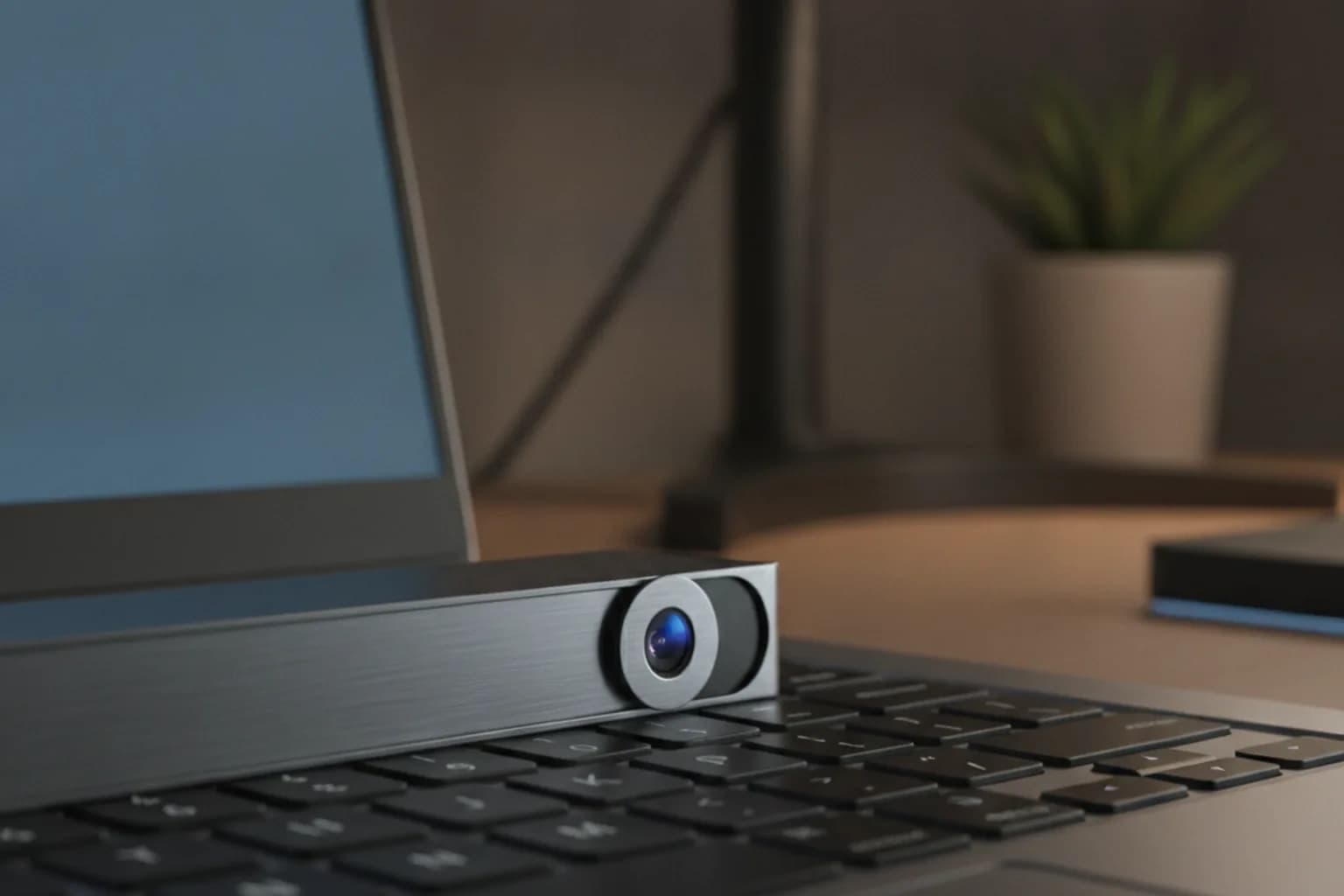
- Install a physical camera cover or a thick opaque sticker on the lens — the only protection that works regardless of any software compromise.
- Keep your operating system and camera drivers updated — updates close known vulnerabilities.
- Don't open attachments from unverified emails and don't install cracked versions of paid software.
- Review camera and microphone permissions in Windows, Android, and Chrome's site settings once a month.
- Audit your installed browser extensions and remove anything you no longer use.
- Use a strong, unique password for your home Wi-Fi router and keep its firmware updated.
- When connecting to public Wi-Fi — a café, airport, or hotel — turn on a VPN, such as LiMP VPN for Windows and Android, to reduce the risk of traffic interception on an untrusted network.