
What is an SMS blaster, and why is it in the news in 2026
An SMS blaster is a compact fake base station that mimics a legitimate cell tower. It captures nearby phones, briefly forces them to connect to it instead of the real carrier network, and then pushes text messages directly to those devices. The message never touches the carrier's infrastructure, so spam filters and sender-ID blocking never see it.
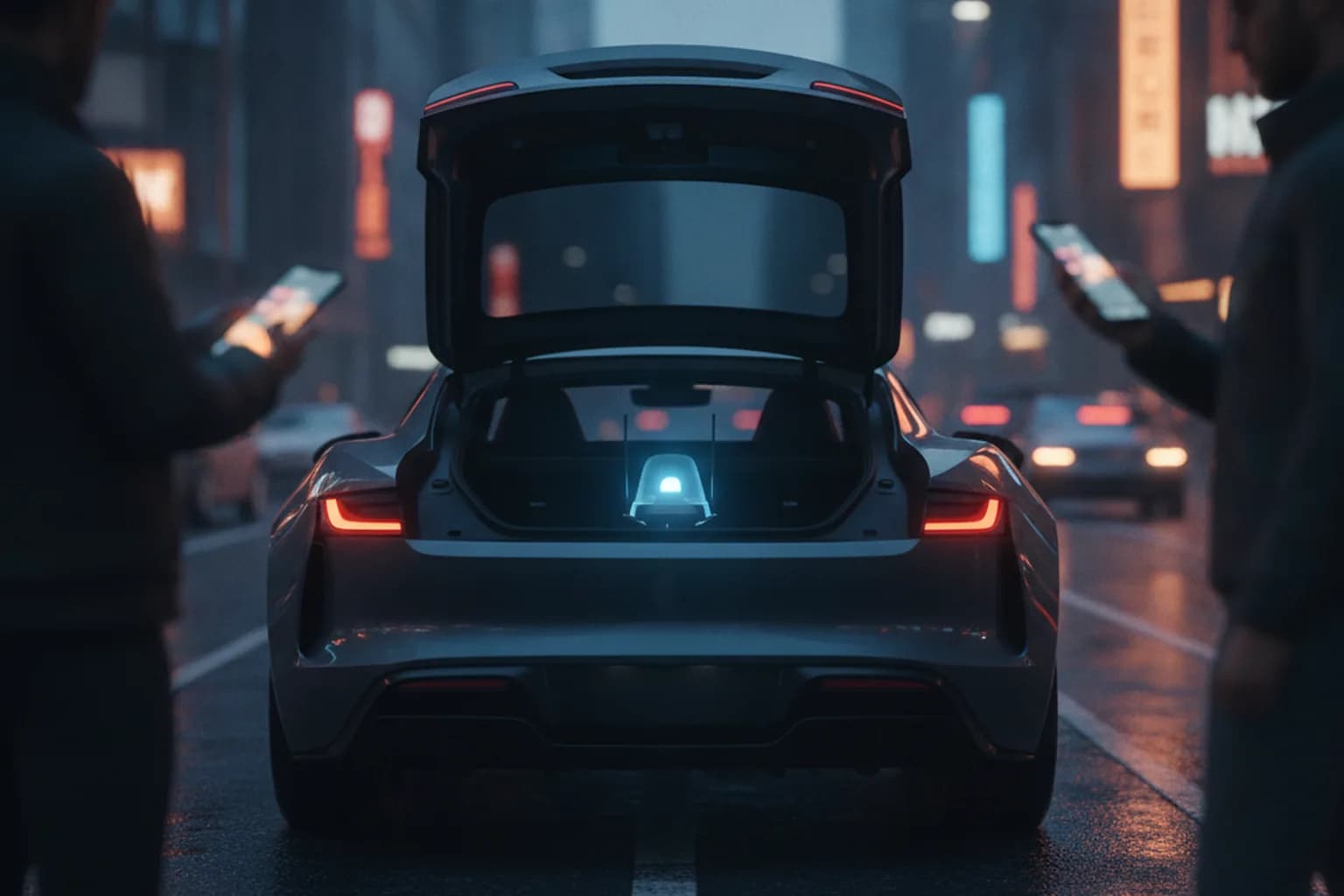
In March–April 2026, Toronto police dismantled a car-mounted SMS blaster: according to The Record, three people were arrested on 44 charges, and the device's operation caused more than 13 million connectivity disruptions for nearby subscribers. Around the same time, Kazakhstan's Agency for Financial Monitoring reported the first such case in the CIS region — officials said the equipment, installed in vehicles near markets and shopping centers, sent up to 100,000 texts per hour impersonating Beeline and Halyk Bank with a fake bonus-exchange link. Four people were detained. Earlier cases of this kind were reported in the UK, Thailand, and New Zealand, and the topic has become a recurring theme in security bulletins covering arrests of SMS blaster operators.
The key difference from a regular scam text campaign: the operator doesn't need victims' phone numbers at all. The device hits every phone within range — no contact database, no leaked personal data, no numbers bought on the black market.
How a fake tower tricks your phone into connecting
Phones constantly search for the strongest available signal and switch to it automatically — that's how the cellular protocol is designed to work. An SMS blaster exploits exactly this: it broadcasts a stronger signal than the real carrier tower and offers the phone a connection on the legacy 2G standard. Kaspersky estimates the device's range at roughly 500 to 2,000 meters; Kazakhstan's financial monitoring agency reported a range of about 300 meters in its case.
The core weakness is that the 2G (GSM) protocol has no mutual network authentication: the phone has to prove its identity to the tower, but the tower never has to prove anything back. 4G and 5G networks do require mutual authentication, which is exactly why blasters deliberately downgrade the connection to 2G, where the phone simply trusts any station that claims to be a carrier.
Why the sender looks like it's from your bank
A fake tower inserts the message directly into the phone's communication channel, bypassing the carrier's servers entirely. That's why the sender field can show any alphanumeric name — Bank, Delivery, a specific bank's name — with no link to a real short code or a sender actually registered with the carrier. The phone displays it exactly like a genuine bank alert, so the usual who-sent-this-text check doesn't help here.
A side effect: your phone can lose service for a few minutes
While a phone is connected to a fake tower, it isn't served by the real carrier network. In the Toronto case, this reportedly caused over 13 million connectivity disruptions for nearby subscribers, including temporary loss of calling access — potentially even emergency calls. That's not a reason to panic over a single dropped signal, but it is a reason to take an unexplained loss of service in a crowded area more seriously than ordinary no-signal.
How to tell an SMS blaster might be nearby
None of the signs below prove an attack on their own — a legitimate network occasionally falls back to 2G in a poor-coverage spot and does request device identifiers during routine operation. But several of these signs together, at the same time and place, are worth paying attention to.
- Your signal indicator suddenly shows E or 2G somewhere that normally holds a solid 4G or 5G connection — downtown, in a mall, at a train station.
- Your phone briefly loses service entirely, with no obvious explanation.
- A text from your bank or your carrier with a link arrives specifically in a crowded place — a mall, a market, a station, stopped traffic.
- People standing near you receive a similar-looking text with a link around the same time.
- On Android 16, you get a notification about connecting to an unencrypted network or an unusual request for your device identifier.
How to turn off 2G on Android
Disabling 2G is the main technical defense, because without an available 2G fallback, a blaster has nothing to downgrade your connection to. Menu locations differ between manufacturers, but the underlying principle is the same everywhere.
On stock Android (Pixel and close equivalents), starting with Android 12: go to Settings → Network & internet → SIMs → select your SIM → turn off Allow 2G.
Android 16 adds a dedicated, more visible section: Settings → Security & privacy → More security & privacy → Mobile network security. Two toggles live there — 2G network protection (blocks downgrades to 2G) and Network notifications (warns about an unencrypted or unusual connection). Full support for these features depends on the device's modem — it requires hardware support at the IRadio HAL 3.0 level, which newer Android 16 devices were built with.
Samsung, Xiaomi, and other Android skins
On devices with custom skins, the option may have a different name, live in a different menu (Samsung One UI keeps it under Connections → Mobile networks), or be temporarily missing on a given model and firmware version until the manufacturer finishes modem support. If you can't find a clear 2G or 2G protection toggle, try searching your settings for 2G, or fall back to the option below.
What turning off 2G might break
In some places — remote rural areas, or older networks in certain countries abroad — 2G is occasionally the only standard still available. Leaving 2G permanently disabled risks losing service exactly in places where it depends on that standard. A reasonable compromise is to keep the protection on by default in cities and temporarily re-enable 2G only when you know you're heading somewhere that needs it. For everyday use in the city, and as an extra layer of encryption for your mobile data in case your phone ever connects to a rogue network, it's worth running LiMP VPN for Android permanently in the background.
What to do on iPhone
iOS has no dedicated user-facing block-2G switch — Apple doesn't expose that setting in the regular interface. The only built-in way to effectively block 2G connections is Lockdown Mode, found under Settings → Privacy & Security. It was built for people facing elevated individual risk — journalists, activists, public figures — and restricts network protocols on the device, including 2G, as a side effect. In exchange, it noticeably limits convenience: certain message attachments, link previews, and some network connection types stop working. Turning it on just in case isn't necessary for most people.
For everyone else on iPhone, the defense stays behavioral: don't tap links in unexpected texts, verify anything through your bank's official app rather than a message, and keep iOS updated — modem and security patches ship separately from major feature updates.
Does a VPN protect you from an SMS blaster
Honesty matters here: a VPN encrypts and tunnels internet traffic, while an SMS blaster operates at the cellular radio layer, below the internet entirely. A short message inserted directly into the GSM channel is something a VPN never sees or blocks — it only kicks in once data actually travels over the internet through the mobile connection.
| Threat | VPN | What actually helps |
|---|---|---|
| Phishing text from a fake tower | No — the text travels over the radio channel, not an internet tunnel | Disabling 2G, never tapping the link |
| Entering card details on a phishing site from the text | No | Only access your bank through its official app or a saved bookmark |
| Mobile data intercepted after connecting to a fake 2G network (IMSI catcher) | Yes — traffic inside the tunnel is encrypted | Always-on VPN plus disabling 2G |
| Calls and texts intercepted inside a 2G session | No | Disabling 2G, end-to-end encrypted messengers |
| Temporary loss of service near a rogue tower | No | Wait it out, move away, restart your phone |
The table shows exactly where a VPN earns its place in the defense chain: the moment your phone connects to someone else's network and starts sending internet traffic — whether through a fake 2G tower or an open cafe Wi-Fi — a VPN encrypts that traffic and shields it from interception at the network level. For that to work, the VPN has to stay on at all times rather than being switched on manually when something feels off — covered in more detail in our guide to always-on VPN mode.
Got a suspicious text: what to do
If a text with a link from your bank or your carrier shows up in a crowded place, don't open the link. The telltale signs of phishing text content — urgency, odd domains, spelling slips — are covered separately in our guide to smishing protection; here's just the response checklist.
- Don't tap the link and don't enter any information on the page it opens.
- Verify directly — through your bank's official app or the number printed on the back of your card, not the one in the text.
- If you already opened the link and entered card details, call your bank immediately to block the card and change passwords on linked accounts.
- Report the text to your carrier through its official app or spam-reporting short code.
Checklist: protecting your phone from fake cell towers
- Disable 2G connections in your network settings.
- On Android 16, turn on 2G network protection and Network notifications under mobile network security.
- Keep your system and modem updated — security patches often close exactly these downgrade scenarios.
- Never tap links in texts; handle banking only through the official app.
- Run your VPN in always-on mode on mobile data instead of switching it on manually when you're suspicious.
- Use end-to-end encrypted messengers for personal conversations instead of plain texts.
- Where possible, move to SMS-free two-factor authentication — passkeys or an authenticator app are more reliable than a text code.
- At large public events — concerts, markets, stations — treat any text with a link with extra caution.