
What Private Space is and how it's built
Private Space isn't a folder or an icon-visibility toggle — it's a full additional user profile, built similarly to the work profile used on managed corporate Android devices. It has its own set of installed apps (even if the same app is already installed in your main profile, you still need to install it again inside the space), its own accounts, its own file storage, and its own lock.
The feature is available starting with Android 15 and requires hardware support — not every phone and not every region gets it at the same time, even on the same OS version. There are also system-level restrictions: Private Space can't be set up on a managed device under a corporate policy, with a supervised account (for example, a child account under parental controls), or for a guest or secondary device user.
How to set up Private Space: step by step
Setup takes a few minutes and doesn't require special permissions or root access.
- Open Settings → Security & privacy.
- Find Private Space and tap Set up.
- Sign in with a Google account — use a separate account if you need full isolation of search history, bookmarks, and sync, or sign in with your main one.
- Set a separate lock: PIN, pattern, or fingerprint/face — it can differ from your phone's own screen lock.
- Install the apps you need inside the space — it has its own Play Store icon, and apps already installed in your main profile are not copied over.
- Move files into the space's Downloads folder if needed — note that moving (unlike copying) removes the original from shared storage.
How to find and open the space
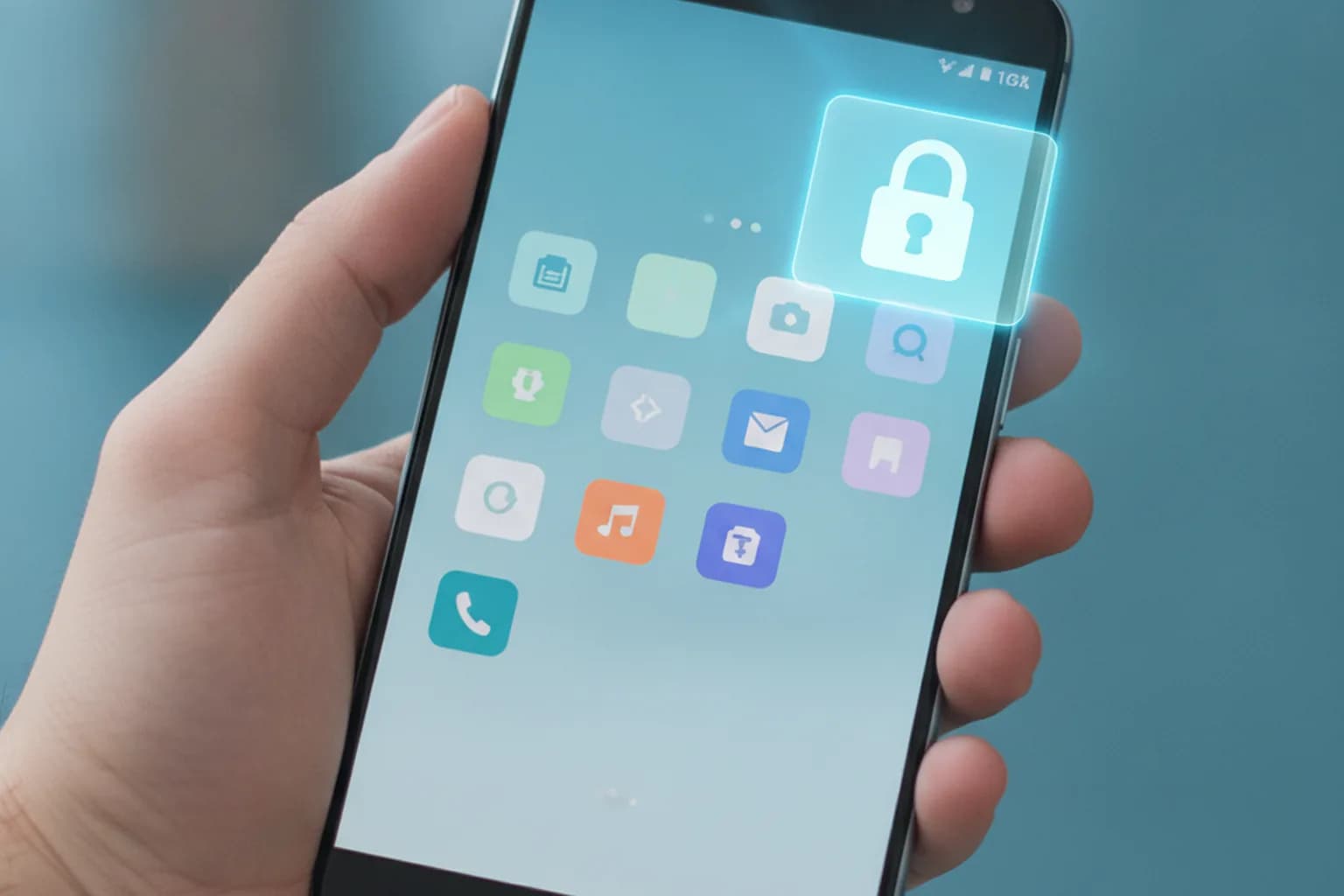
Once set up, Private Space appears at the very bottom of the shared app list as a separate block with a lock icon. Tap that block and enter the PIN or use biometrics to get in. You can also find it through system search by typing "private space".
Auto-lock and hiding settings
Private Space offers three auto-lock modes: every time the device locks, 5 minutes after the screen turns off, or only after a restart. The stricter the mode, the better the protection, at the cost of entering the separate code more often. A separate toggle, "Hide private space when locked", removes the lock-icon block from the app list entirely — after that, the only way in is through search.
What Private Space protects — and what it doesn't
Before relying on the feature, it helps to understand its limits — confusion between "hidden" and "protected" shows up most often right here.
| Scenario or threat | Does Private Space protect against it | What actually fixes it |
|---|---|---|
| Someone picks up your phone while it's already unlocked | Yes — opening Private Space apps still requires its own PIN | Auto-lock set to "every time the device locks" plus a separate code |
| A third-party app reads the list of apps installed on your phone (see our dedicated guide) | Partially — the app list inside the space is separate from the main one | Only install genuinely sensitive apps inside the space |
| A leak through the system photo picker or Recents | Yes, as long as the space is locked — it doesn't take part in those system lists | Don't keep sensitive files in your main profile "just in case" |
| A malicious app you install inside the space yourself | No | Install only from the Play Store, and check APKs before installing (how to do that) |
| Your ISP or a public Wi-Fi owner can see your traffic | No — Private Space doesn't encrypt network connections | A VPN installed and enabled inside the space itself (next section) |
| Phone lost or stolen with no screen lock at all | No | Turn on a device-wide screen lock first — nothing else works without it |
| Being pressured to unlock your phone during a border inspection (see how to protect your data at the border) | No — the space doesn't get you out of a demand to unlock it | Plan ahead what you actually carry on the device before travelling |
Why your VPN doesn't work inside Private Space, and how to fix it
This is the least obvious part of the topic. The reason lies in the feature's architecture: every Android profile, Private Space included, has its own network configuration, separate from the main profile. Specialists who work with the similar work-profile mechanics on managed Android devices point out the same thing: a VPN tunnel raised in one profile is simply invisible to apps in another profile — the system never links them.
The practical takeaway: turning on LiMP VPN for Android in your main profile does nothing to protect traffic from apps inside Private Space. Install the VPN app a second time — inside the space, through its own Play Store — and turn it on there separately. For reliability, set up always-on VPN right away and enable "Block connections without VPN" in that profile's network settings.
Nuance: while the space is locked, its apps are fully stopped and don't run in the background, so the VPN client inside it only reconnects once you unlock the profile again. There's an upside too: since each profile has its own network, you can run different VPN connections or server locations in your main profile and inside the space at the same time — they don't conflict. The simplest way to confirm protection is actually active is described in how to check that your VPN is working correctly — open a browser inside the space and check the IP address. Check available clients on the LiMP VPN apps page.
Samsung Secure Folder and Xiaomi Second Space: what's different
Private Space is a stock Android feature, but major manufacturers have long shipped their own equivalents, and the two get mixed up regularly.
| Feature | Whose | Foundation and lock | What to keep in mind |
|---|---|---|---|
| Private Space | Stock Android 15+ | System profile, separate PIN/biometric | Not available on every device or in every region |
| Secure Folder | Samsung (One UI) | Built on the Samsung Knox platform, own password or biometric | The menu path can vary between One UI versions |
| Second Space | Xiaomi (MIUI / HyperOS) | A separate system user with its own accounts | A VPN, as everywhere, has to be set up inside it separately |
| Hiding an app icon in the launcher | Any skin | A purely visual trick, with no separate lock | This is not data isolation — the app keeps running as normal |
One rule holds across all three real implementations (the cosmetic icon-hiding trick aside): it's a separate environment with its own set of apps and accounts, which means a VPN inside it is also a separate setup rather than something inherited from the main profile. Menu wording differs between skins, but the underlying logic is the same.
Pitfalls: backups, notifications, deletion
Data inside Private Space isn't included in your regular device backup — moving to a new phone or restoring from a backup means setting the space up and repopulating it from scratch. Deleting the space itself removes all of its apps and data with no way to recover them — treat that action as irreversible.
Because apps in a locked space are fully stopped, notifications and messages from them don't arrive until you unlock the profile — including from messengers and two-factor authentication apps: you'll only see the confirmation code after signing in. You also can't place a widget or shortcut on the home screen, launch a work profile, or set up smart-home controls from inside the space — those stay limited to the main profile.
If you forget the space's separate PIN, there's a fallback: you can switch to using your phone's own screen lock to get in instead of a dedicated code — more convenient, but it slightly weakens isolation if someone else knows your device unlock code.
Who actually needs Private Space
The feature earns its place when the question isn't "what to hide from everyone" but "what shouldn't show up if someone else briefly picks up this phone." Banking and medical apps are a common example: if family members or coworkers occasionally handle your phone, it's reasonable to keep those apps inside the space rather than just hiding the icon.
A separate account for dating or a side job is another practical case: isolating the account lowers the odds that a message or notification surfaces at the wrong moment. A shared family phone that a child also uses occasionally is similar — adult apps and conversations stay inside the space rather than in plain view. While travelling, Private Space is a convenient way to keep work apps separate from personal ones when the phone ends up in someone else's hands at a border crossing or a hotel front desk.
Checklist: setting up Private Space safely
- Set a PIN or biometric for the space that's different from your main screen lock.
- Turn on auto-lock set to "every time the device locks", not just "on restart".
- Enable "Hide private space when locked" if you don't want its existence to be obvious.
- Use a separate Google account if full isolation of history and sync matters to you.
- Install apps inside the space only from the Play Store, and check any APK before installing it if it came from elsewhere.
- Install a VPN app inside the space separately and turn on always-on VPN with connections blocked without it.
- Check the IP address from inside the space to confirm the VPN is actually active there.
- Keep a separate copy of anything truly important outside the space — it has no automatic backup.