
Why elderly people are the main target for scammers
Scams against elderly people succeed not because older adults are less sharp, but because scammers deliberately exploit several things at once: a habit of trusting an "official-sounding" call, fear of immediately losing money or harming a family member, less day-to-day exposure to new digital scam patterns, and often being alone at home with no one to consult in the moment. The call is built specifically to prevent a pause long enough to phone a relative and check.
Common pretexts elderly people hear on the phone:
- "Bank fraud department" or "fraud investigator" — warns about a "suspicious transaction" and asks for an urgent transfer to a "safe account."
- "Police officer" or "detective" — claims a relative has been arrested or caused an accident and money is needed "to resolve it."
- A "relative in trouble," including a cloned voice generated by AI — the mechanics of this specific scam are covered in AI voice cloning scams.
- A "technician" calling about a meter replacement or intercom repair, asking for a code from a text message "to confirm the work order."
- A "courier" or delivery service asking for a code from a text message to "release the package."
- A caller claiming to be from a government benefits office, asking to "confirm details" through a link or a code.
In every case, the goal is the same: get a one-time code, a password, or a direct transfer before the person has a chance to pause and verify independently.
Which scams hit retirees hardest, and what actually protects against them
Below are the most common scenarios: what the scammer relies on, what to set up, and whether a VPN helps at all.
| Scam | What the scammer relies on | What to set up | Does a VPN help? |
|---|---|---|---|
| "Bank" call asking to move money to a "safe account" | Trust in an authoritative tone and fear of losing savings | "Hang up and call back the number on the card" rule, transfer limits | No |
| Request to install remote-access software "to protect the phone" | Perceived authority and not knowing what real bank support looks like | Block unknown-source installs, review accessibility permissions — see remote access scams | No |
| Request to read a text message code to a "courier" or "technician" | Urgency and framing it as "just confirming the order" | Hide message text on the lock screen, "codes go to no one" rule | No |
| A loan or credit line opened in the parent's name | Leaked personal data and few barriers at lenders | Credit freeze with the major credit bureaus | No |
| Phishing link in a text message or messaging app | A convincing message and urgency ("your card will be blocked") | Never tap links from texts, type the address manually — see smishing | Not directly |
| Banking trojan with a fake overlay screen | Installing an app outside the official store | Google Play Protect, block unknown-source installs — see Android banking trojan | No |
| Data interception on open Wi-Fi at a clinic or café | Connecting to an unsecured public network | Always-on VPN on the phone | Yes |
As the table shows, a VPN only addresses the last scenario — traffic interception on someone else's network. Every other scheme runs on conversation and trust, and those are stopped by phone settings, bank settings, and agreements within the family.
Setting up an elderly parent's Android phone: 7 steps
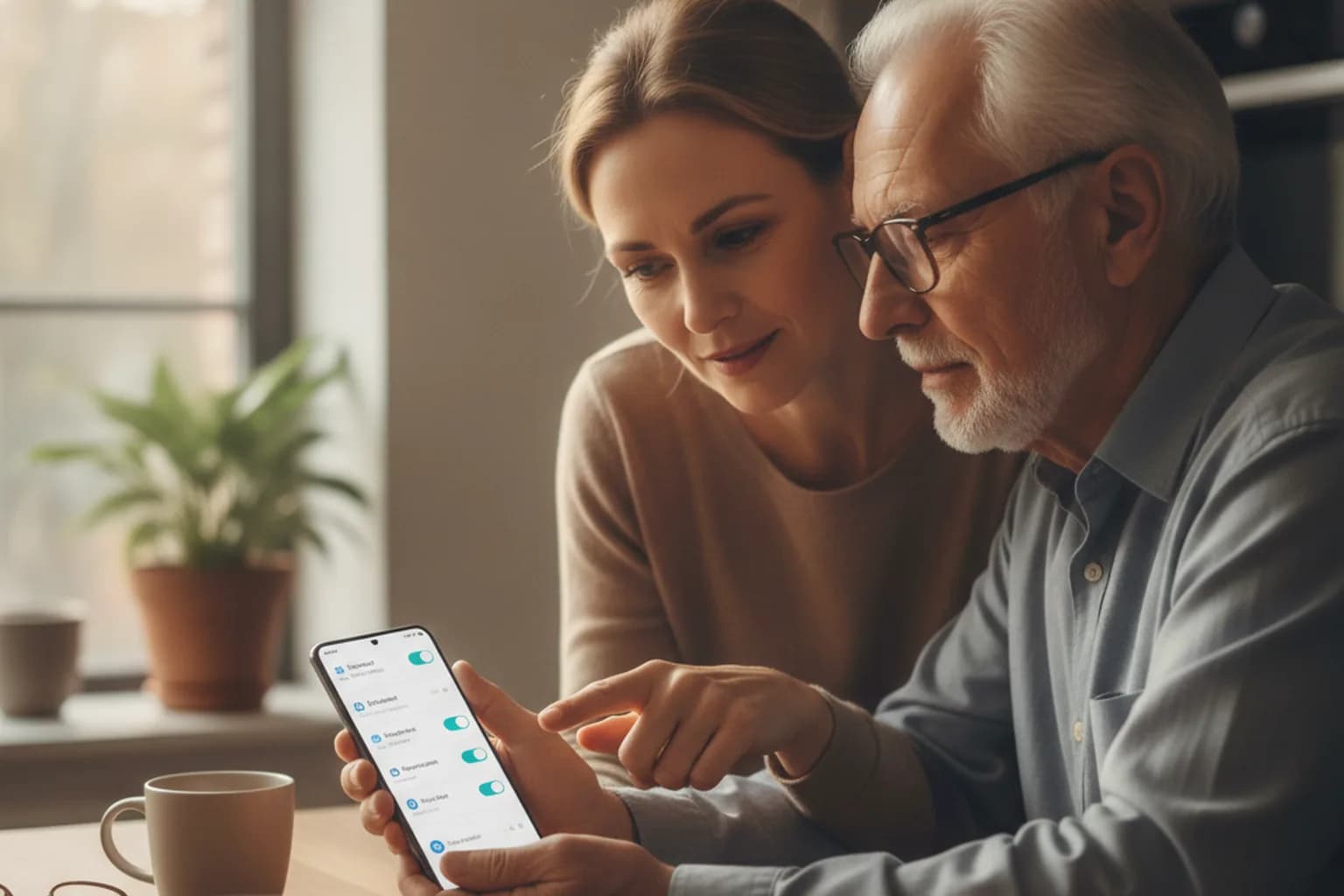
These Android settings can be done in a single visit — budget around half an hour.
1. Update the system and turn on Google Play Protect
Check for Android and app updates in the phone's settings — current versions close known vulnerabilities. In Google Play, open "Play Protect" and confirm app scanning is on; it flags dangerous installs before they can do damage. If the device supports Android's advanced account protection, turning that on too is worthwhile.
2. Block installs from unknown sources
In security settings, turn off "install unknown apps" for the browser, messaging apps, and the file manager — this is the single most common way a fake "bank app" or "security update" lands on an elderly person's phone. Worth knowing: on Android 16, this permission, along with access to accessibility features, technically can't be toggled on while a phone call is active — even if a scammer is dictating instructions in real time, the system blocks the attempt until the call ends. Permissions already enabled before the call still work as before, which is exactly why step 1 matters just as much.
3. Review accessibility permissions and remove anything unneeded
In the "Accessibility" settings, check which apps have requested this permission — it's the exact mechanism remote-access tools use to gain control over the screen and input. If something in the list isn't recognized, or was installed "because the caller asked," revoke the permission and uninstall the app.
4. Turn on caller ID and spam-call blocking
Enable the built-in caller ID and spam blocking in the Phone app — most Android manufacturers offer this for free with a single toggle. Carriers and banking apps usually offer a similar feature, and it's worth turning on there too.
5. Save official numbers in contacts
Add the bank's official support number (printed on the back of the card), the clinic's number, and your own number labeled clearly as "son" or "daughter." Agree on a rule: any call about money or documents from an unfamiliar number means hanging up and calling back only the number already saved in contacts — never the number the caller provides.
6. Set a PIN, biometrics, and hide text message content on the lock screen
Turn on screen lock with a PIN and enable biometric login for the banking app. Separately, disable showing notification text on the lock screen — otherwise a one-time code is visible to anyone glancing at the screen, including during a screen-share while on a call.
7. Install LiMP VPN and turn on always-on mode
Install LiMP VPN for Android and enable always-on connection so your parent never has to tap anything themselves. This matters most for Wi-Fi at a clinic, a pharmacy, a hotel, or a neighbor's place — the risks of open networks are covered in public Wi-Fi security. It's important to be clear about the limits: a VPN encrypts traffic and protects against interception on an unfamiliar network, but it won't stop a phone call, and it won't prevent your parent from reading a code out loud if asked.
Banking: limits, alerts, and a trusted contact
Most major US banks and brokerages let account holders designate a trusted contact person — someone the institution can notify if it suspects financial exploitation or can't reach the account holder, without giving that person access to funds. Under FINRA Rule 4512, broker-dealers are required to make reasonable efforts to obtain a trusted contact for every brokerage account; many retail banks offer an equivalent option for standard accounts. In the UK, some banks offer a similar third-party mandate or "second eyes" notification setup — ask your parent's bank directly, since the exact name and process vary by institution.
How it's set up differs bank to bank — sometimes directly in the mobile app, sometimes only by calling support or visiting a branch, occasionally requiring both people to appear together. Check the specific process with your parent's bank.
Alongside a trusted contact, it's worth setting:
- A daily transfer and payment limit — a modest cap closes off most "urgent transfer" scenarios on its own.
- Text or push alerts for every transaction, sent to your parent's phone, with a copy to you if they agree.
- A separate "everyday" card with a small balance, so core savings aren't one tap away from a transfer initiated on the phone.
General practices for using a banking app safely are covered in secure online banking. Every step above should only be taken with your parent's agreement — it's their money and their decision who gets to confirm transactions on their behalf.
Credit freezes and account locks: what to set up
In the US, consumers can freeze their credit file for free with each of the three major credit bureaus — Equifax, Experian, and TransUnion. A freeze blocks new creditors from pulling the credit report, which in practice stops most attempts to open a new loan or credit card in someone else's name; existing accounts and loans already in place aren't affected, and the freeze can be lifted the same way it was placed, whenever needed. In the UK, the equivalent is Cifas Protective Registration, which flags the person's details so lenders carry out extra checks before approving new credit.
A second, separate step is protecting the mobile number itself: ask the carrier about a port-out lock or SIM-swap protection — a PIN or passcode required before the number can be moved to another device or carrier. This closes one of the more common ways scammers hijack a phone number to intercept one-time codes.
- A credit freeze must be requested by the account holder themselves, using their own identity verification — it can't be set up on someone's behalf under a power of attorney.
- If your parent doesn't already have online accounts with the credit bureaus, setting those up is the first step, ideally done together.
- Protecting the government benefits or tax account itself (sign-in with a one-time code rather than a password alone) is worth doing at the same visit.
The practical approach: sit down with your parent and set these up together, under their own identity — it's both the only way that's valid and the fastest way to get it done.
A family protocol: a safe word and the "call back" rule
Technical settings close part of the attack path, but family agreements matter just as much — simple rules that are easy to remember under stress.
- Agree on a safe word or question only the family knows, to use if someone calls claiming to be a relative in urgent need of money. This matters especially against AI voice cloning, where the voice can sound convincingly real.
- Agree that any call about money is a reason to hang up and call back independently, using a number already saved in contacts — never the number the caller provides.
- One-time codes and passwords go to no one — not "the bank," not "the police," not a "courier." Real staff at these organizations never ask for them over the phone.
- No legitimate bank or government employee will ever ask for a transfer to a "safe account" or ask someone to install software on their phone — that's a scam indicator essentially every time.
- Decide who your parent should call whenever something feels off — you or another relative — and make sure that number is saved in contacts with a clear label.
Have this conversation without condescension: scammers don't only target the elderly, they work professionally against people of every age, so frame it as "we're on the same team," not a lecture.
If a parent has already sent money or shared a code
If it's already happened, the order of steps is:
- Call the bank immediately using the number on the back of the card, and ask them to freeze the card, lock the app, and pause account activity.
- Change passwords for banking, email, and any government accounts, and sign out of all active sessions in those services' settings.
- If remote-access software was installed, remove it, review "Accessibility" settings for unfamiliar permissions, and — if in doubt — back up important data and factory-reset the phone.
- File a report with local law enforcement and with the relevant fraud reporting body (in the US, the FTC at reportfraud.ftc.gov) — this matters both for a possible recovery and for flagging the scam pattern to others.
- Check the credit report through each bureau in case the leaked data was already used to open new credit.
Important: none of these steps guarantees the money will be recovered — acting fast in the first hours improves the odds, but the outcome depends on the bank and law enforcement, never on a scammer's fake "support line."
Checklist: what to do in a single visit
- Update Android and apps, turn on Google Play Protect.
- Block installs from unknown sources and review accessibility permissions.
- Turn on caller ID and spam blocking, save the bank's and clinic's official numbers.
- Set transfer limits and alerts for every banking transaction.
- Add a trusted contact at your parent's bank.
- Freeze credit with all three bureaus and set up a SIM port-out lock with the carrier.
- Agree on a family safe word and the "call back on a saved number" rule.
- Install LiMP VPN on Android and turn on always-on mode.